


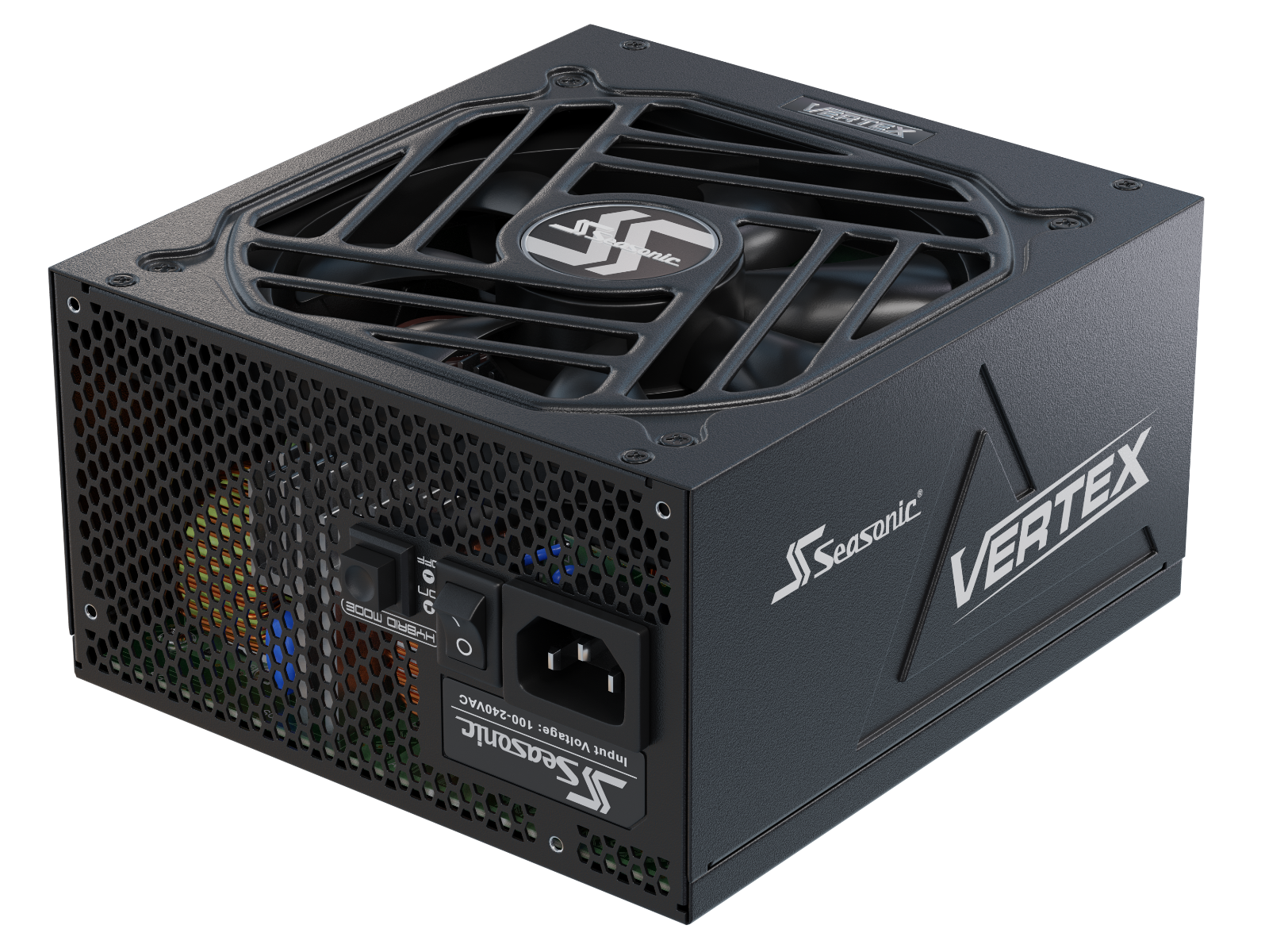







Choosing a power supply for a PC with local LLMs depends on how the entire system will operate. A system with multiple graphics cards has different power requirements than a PC with just one, and power consumption can vary even within a single session. This article takes a deeper look at the topic.
What is an LLM-ready PC?
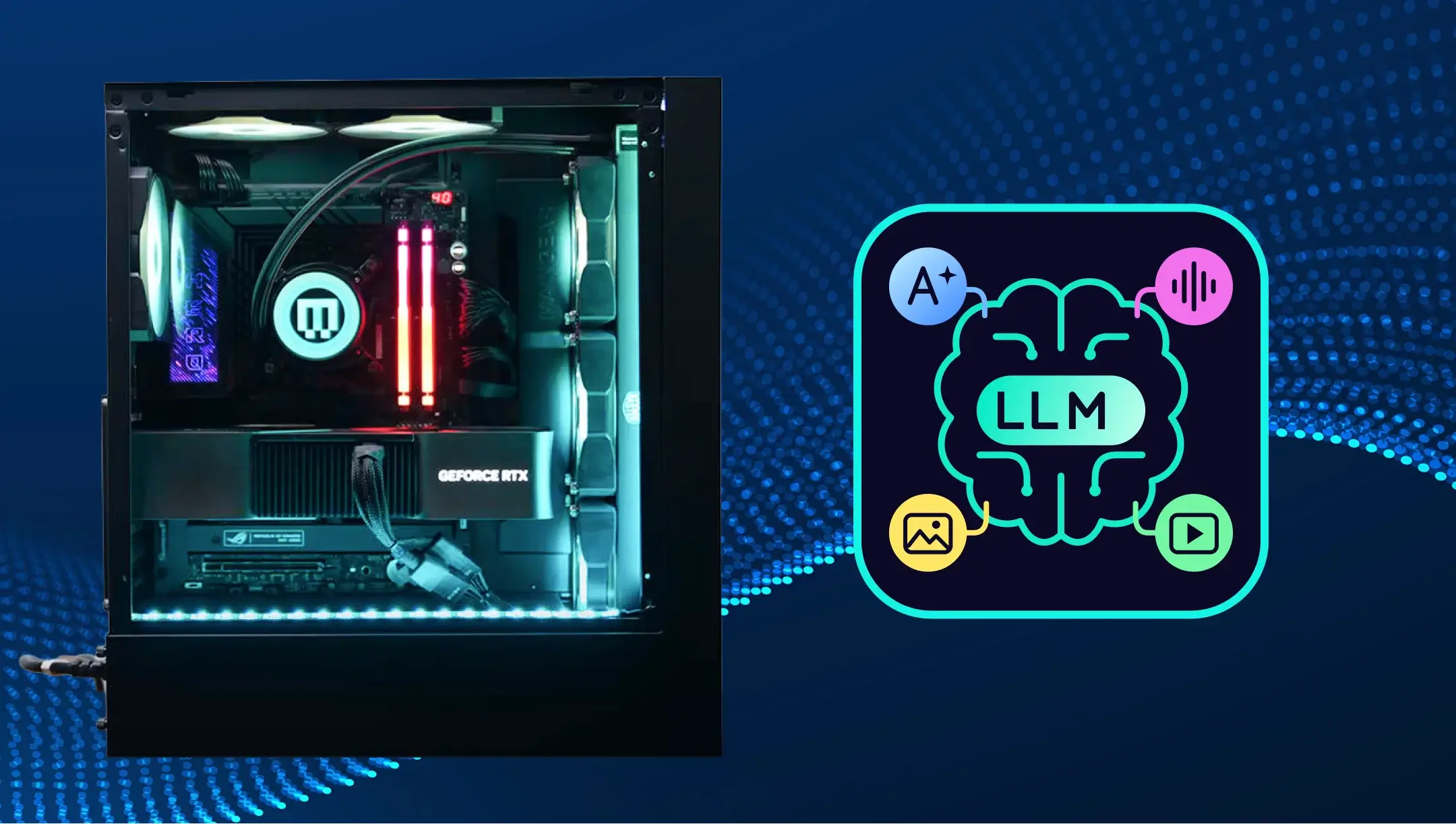
An LLM-ready PC is a computer that runs large language models (LLMs) locally and generates the answer. Imagine opening a chat, pasting an email draft, and asking the model to shorten it to three sentences. Or copying a snippet from a manual and asking it to explain it in simple terms. You download and load the model, and your computer processes the requests and generates the responses on its own. That’s how it works.
Depending on how the program runs the model, it may use RAM, video card memory (VRAM), or both. Try giving the model a task that you perform regularly and see if you’re satisfied with the response speed. If you later want to paste entire documents into the chat instead of just a few paragraphs, check how much memory is required for that amount of text.
When looking for a PSU for a PC running LLMs, first, decide on the components. For example, if you plan to install a new GPU, calculate how much power the entire PC will need with it. In our online wattage calculator, you can specify the graphics card, processor, storage devices, and cooling system to get a recommendation on the power supply wattage for your build.
How does it differ from workstations built for general AI tasks?
LLM-ready PCs are configured for the local deployment of a specific language model, with a primary focus on its memory requirements. A general-purpose AI computer is selected for a broader range of tasks, including running language models, image analysis, and model training.
For an LLM PC, we recommend starting with the requirements of the model you want to run. For a build with a dedicated graphics card, check whether the model and the data required for your typical queries fit into its memory. If there’s enough memory and responses come back quickly enough, a single graphics card will suffice for this scenario.
For an AI PC build, check the requirements of all the applications you plan to use. Let’s say the graphics card is sufficient for the code assistant. To determine whether it’s also suitable for image generation in ComfyUI, check the image-generation model’s VRAM requirements at your selected resolution. If you’re training a model to sort product photos on the same PC, also factor in SSD space for the image dataset, RAM for data preprocessing, and video memory for training.
Which energy efficiency rating is best suited for the sustained, heavy workloads involved in running LLMs?
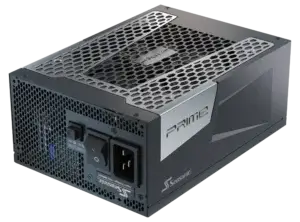
An 80 PLUS® Gold or 80 PLUS® Platinum PSU can be a good fit if it meets your system’s power requirements. If your PC runs local models for hours every day, consider an 80 PLUS® Titanium model such as our PRIME TX ATX 3.1 series.
When comparing the certification thresholds themselves, 80 PLUS® Ruby has the highest requirements. In the current CLEAResult program, this level is also available for non-redundant desktop and workstation power supplies. In the 230 V EU Internal Non-Redundant category, 80 PLUS® Ruby also requires a minimum efficiency of 85% at 5% load. This is an important consideration if the PC spends a long time waiting for requests with low load. One example of an 80 PLUS® Ruby-certified PSU is our PRIME ENTERPRISE RX-1600.
| 80 PLUS® Class | Minimum efficiency at full load at 230 V |
|---|---|
| 80 PLUS® Gold | 89% |
| 80 PLUS® Platinum | 90% |
| 80 PLUS® Titanium | 91% |
| 80 PLUS® Ruby | 92% |
Under these test conditions, two power supplies – each delivering 800 W and operating exactly at the threshold of their respective classes – will draw approximately 899 W from the grid for 80 PLUS® Gold and 879 W for 80 PLUS® Titanium. Over eight hours a day, this difference would amount to about 58 kWh per year. This calculation is based on certification thresholds. To evaluate a specific model, compare its measured efficiency at your mains voltage and load.
The Cybenetics report shows how efficiency varies between idle and sustained operation. The lab uses over 1,450 load combinations. If the model is only turned on occasionally, compare these measurements for PSUs with 80 PLUS® Gold, 80 PLUS® Platinum, or 80 PLUS® Titanium certification in the range where your workstation spends the most time.
What protection features should a PSU for an LLM workstation include?
For an LLM workstation PSU, we recommend verifying the presence of six key protections. OCP triggers if the current on the output lines exceeds the set limit. OPP responds to overloads based on the total output power of the PSU. In a workstation with multiple devices drawing power from a single +12 V rail, it is important to consider both parameters when selecting a power supply. In the PSU specifications, we always list both the total rating and the allowable current for individual outputs.
OVP and UVP cut off power if the voltage at the monitored output exceeds the corresponding upper or lower limit. SCP responds to a short circuit at the output, while OTP responds to excessive internal temperature within the unit. After the thermal protection is triggered, allow the PSU to cool down and check that it has sufficient airflow. This matters most in a case where multiple GPUs are expelling hot air near the power supply.
Due to increased resistance at the GPU cable connection point, localized overheating can occur even under an acceptable overall load. For such cases, we have developed OptiGuard™. This technology monitors the current separately on the six +12 V power pins and monitors the connection temperature at both ends of the cable. If any thermal anomaly occurs, the system alerts the user and can cut off power. We plan to introduce OptiGuard™ on select upcoming PRIME models.
How much power does a workstation for running LLMs locally consume?
When running an LLM locally, power consumption depends on the PC configuration and the selected model. In the table, we have compiled published measurements of total system power consumption. Average power consumption is calculated over the test period, while peak power consumption refers to the highest recorded value.
| Configuration | Local model in llama.cpp | Reported power draw |
|---|---|---|
| NVIDIA DGX Spark | gpt-oss-20b | 116.5 W average at the wall |
| NVIDIA DGX Spark | Llama 3.3 70B | 122.4 W average at the wall |
| HP Z2 Mini G1a with AMD Ryzen AI Max+ PRO 395 | gpt-oss-20b | 138.4 W average at the wall |
| PC with Intel Core Ultra 7 265K and GeForce RTX 4090 | Llama 3.2 3B | 261.9 W peak |
| PC with Intel Core Ultra 7 265K and GeForce RTX 4090 | gpt-oss-20b | 509.1 W peak |
In the Signal65 tests, 2,048 input tokens and 512 output tokens were used per query.
For a system with four Intel Arc Pro B70 cards, Puget Systems estimated the total power consumption of the build at approximately 830 W while running Qwen3.6-27B in vLLM. The four graphics cards together consumed an average of 532 W, and the authors estimated the remaining components to consume about 300 W. Average inference power alone is insufficient for PSU sizing.
How to calculate the total power requirement for an LLM-focused build with a single GPU?
For a single-GPU workstation, add up the card’s rated power limit, the CPU’s maximum operating power limit, and the power budget for the rest of the platform. In the example with the GeForce RTX 5080 Founders Edition, we’ll use 360 W of Total Graphics Power. For the Intel Core Ultra 7 270K Plus, Intel specifies 250 W of Maximum Turbo Power. Allocate another 70 W for the motherboard, RAM, SSD, and fans. For your build, substitute the ratings of the specific components you’re installing.
360 + 250 + 70 = 680 W of calculated load on the PSU’s output. To target operation at about 80% of rated capacity, divide 680 W by 0.80 to get 850 W. This is the target we’ve set for this build.
If you’re purchasing a graphics card from a different manufacturer, check its specific power limit and system recommendations, especially for factory-overclocked models.
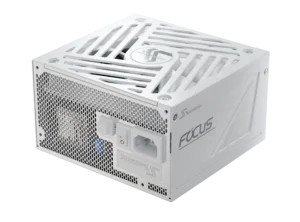
FOCUS GX-850 ATX 3.1 v5 80 PLUS® Gold is a good fit for this example. It delivers up to 70 A, or 840 W, on the +12 V rail and includes a native 12V-2×6 cable for a compatible graphics card and standard PCIe cables too. During the final check of your build, also consider devices that may operate simultaneously with the graphics card, such as local storage drives or additional cooling.
How much power is needed for a multi-GPU system designed for LLMs?
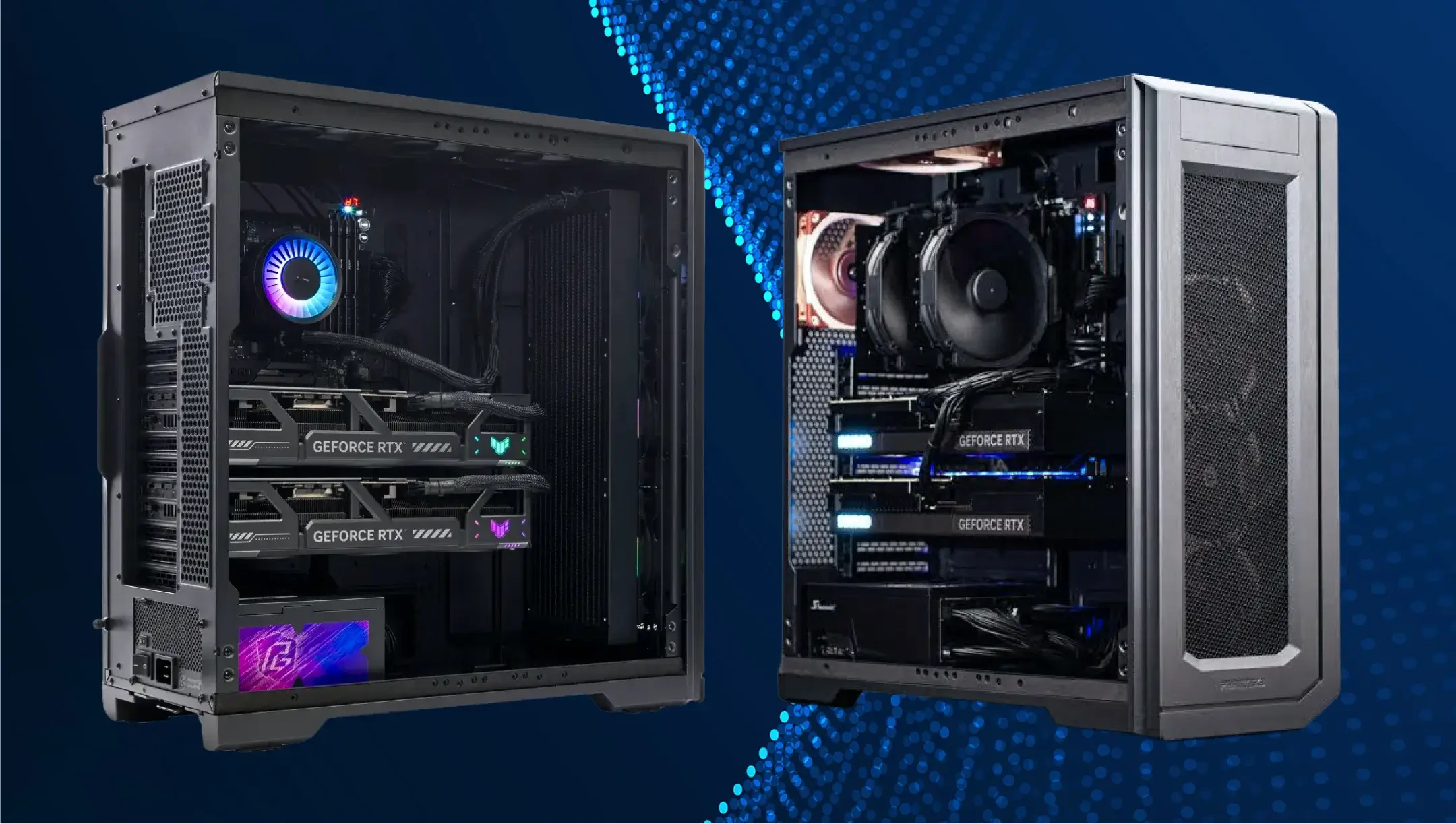
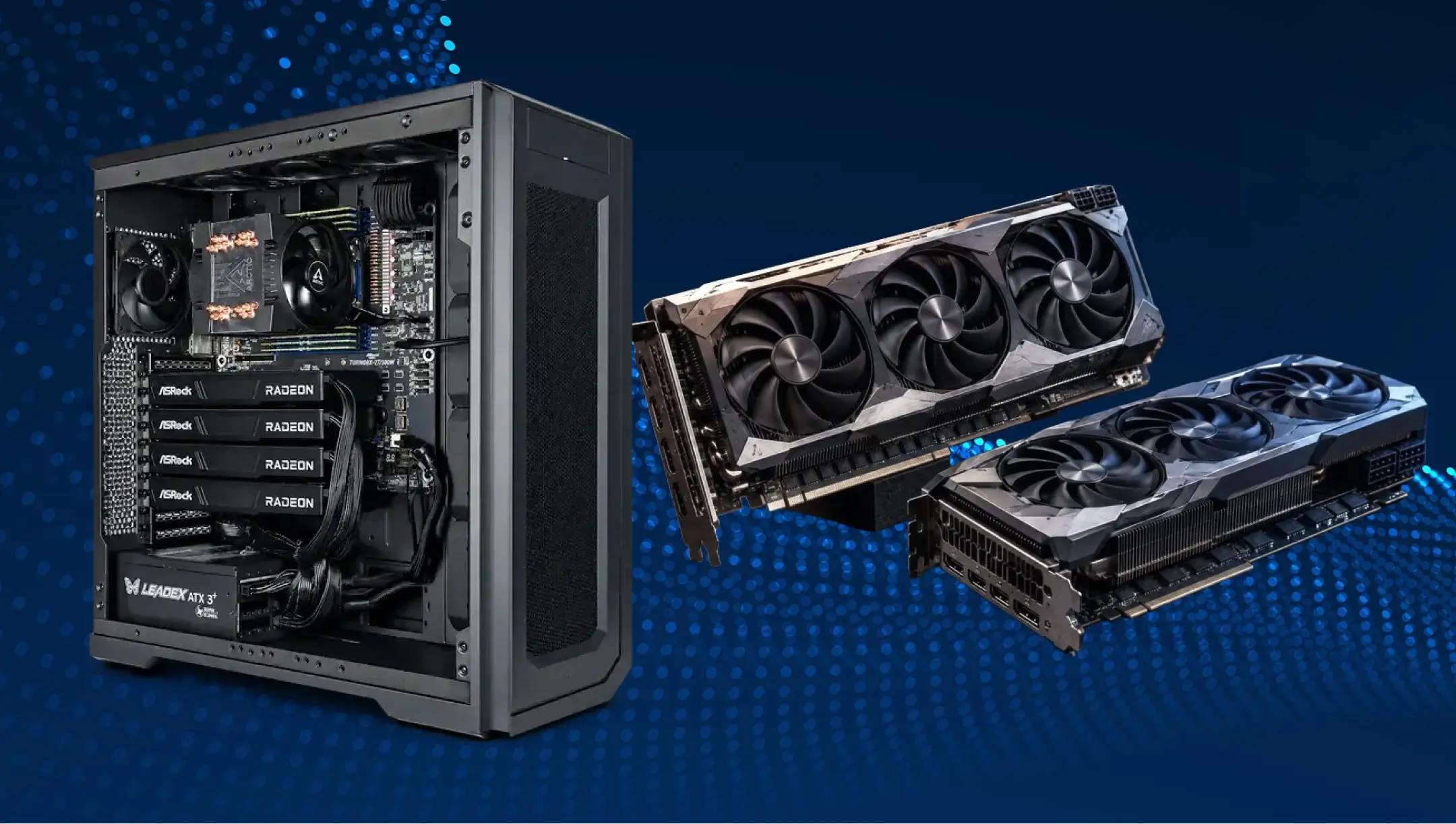
For a multi-GPU workstation, add up the power limits of the GPUs that can run simultaneously. Let’s take the RTX PRO 6000 Blackwell Max-Q Workstation Edition as an example. It has 96 GB of GDDR7 ECC, just like the standard Workstation Edition, but its rated power limit is half as much – 300 W. Add to the GPU power the 324 W Maximum Turbo Power of the Intel Xeon 674X processor and a notional 100 W for the rest of the platform.
| Configuration | Total GPU Limit | Design load of the entire station |
|---|---|---|
| 2 × RTX PRO 6000 Blackwell Max-Q | 600 W | 1024 W |
| 4 × RTX PRO 6000 Blackwell Max-Q | 1200 W | 1624 W |
For a pair of graphics cards, look for a power supply of at least 1,300 W with a separate cable for each. Our PRIME TX-1600 ATX 3.1 80 PLUS® Titanium comes with two native 12V-2×6 cables included. For four graphics cards, consider the PRIME PX-2200 ATX 3.1 80 PLUS® Platinum, which comes with two native 12V-2×6 cables and two 2×8-pin → 12V-2×6 cables. This PSU requires 200–240 V AC and comes with a 15 A C19 power cord. Check that your outlet and electrical circuit meet these requirements.
How much power headroom is required to handle transient power spikes?
For power excursions, we recommend checking the peak load profile that a specific PSU can handle. Leave a margin between the system’s calculated load and the PSU’s rated capacity to account for long-term operation and planned upgrades. Evaluate the PSU’s ability to withstand a short-term peak separately, based on industry standards and test results.
For power supplies rated at over 450 W with a 12V-2×6 configuration, one of the tests involves 200% of the rated load for 100 μs. The peak accounts for 5% of the repeatable cycle. For the next 1,900 μs, the PSU operates under a lower load, set so that the root-mean-square power per cycle equals the rated power. The test continues until the unit reaches thermal saturation. For longer peaks, the Intel table specifies a lower permissible overload. Therefore, a single specification in the datasheet describes only a specific point on the profile, while the test report helps verify how the PSU performs throughout the entire test.
In a multi-card setup, this percentage refers to the total power output of the PSU at the peak moment. Intel defines the test load at the level of the entire platform, taking into account the processor and expansion cards. For a specific PSU, open the test report for that model and check the “ATX v3.1 PSU Power Excursion” line. For example, Cybenetics publishes the result of this test separately from the efficiency and noise metrics.
Should you opt for an ATX 3.1-compliant PSU with a 12V-2×6 connector?
Yes. For a new system with a graphics card that uses a 12V-2×6 connector, we recommend an ATX 3.1-compliant power supply with a native 12V-2×6 cable rated for the card’s requirements. ATX 3.1 specifies requirements for the power supply, particularly regarding its response to load changes. The PCIe CEM 5.1 specification describes the connection of the expansion card and its power interface. Check both specifications in the descriptions of specific components.
In the 12V-2×6 connector, the power pins are longer, and the signal pins are shorter compared to the 12VHPWR connector. This geometry allows the power pins to make contact earlier when the connector is inserted. The SENSE0 and SENSE1 lines indicate the available power. If both are in the Open state, a PCIe CEM 5.1-compliant card interprets this as 0 W available via the cable. For configurations with a 600 W limit, the standard allows up to 375 W through this connector at system startup and up to 600 W continuously after software configuration. See Table 3-6 in Intel’s ATX Power Supply Design Guide.
During installation, insert the plugs until they click into place and leave at least 35 mm of straight cable before any bends. Verify that the side panel of the case leaves enough space for the connector and cable. If you are upgrading an already assembled system, consult our compatibility chart for the exact PSU model. For certain units, a Seasonic cable is provided with two 8-pin connectors on the PSU side and a 12V-2×6 connector on the graphics card side.
Abschluss
When choosing a power supply for local LLMs, base your decision on the most demanding operating mode you plan for the entire build. At Seasonic, we recommend allowing for power headroom to accommodate specific upgrades to your AI computer if you already know which components you’ll be adding or replacing.
Save your power calculation along with your parts list. If you change the configuration later, it will help you compare its requirements with the capabilities of your existing PSU and determine whether it’s suitable for the new build.