









Explore the cases when a PSU wattage calculator may generate inaccurate results and what affects a system’s power requirements in real-world scenarios.
Why power supply calculators are often inaccurate
Power supply calculators are useful tools among PC builders worldwide, providing a reliable starting point for choosing the right power supply. Nevertheless, there are still cases where online calculators give inaccurate results or miss some system components.
The reason this happens is that calculators rely on estimated component power values, typical TDP/TGP figures, or simplified maximum-load assumptions. But in reality, the system doesn’t operate under peak load all the time; therefore, actual energy consumption is often lower than the estimated amount. That’s why two PSU calculators can show different results for the exact same system setup.
Here are more reasons for inaccurate calculator results that are rarely talked about:
- Most calculators do not precisely model short power spikes. Modern GPUs can briefly draw far more power than their rated TGP/TGB to handle heavy graphics for a short period of time. Most PSU calculators rely on static TDP values and don’t account for these real-world power excursions.
- Actual power consumption is usually lower. Most calculators assume that the CPU, GPU, and other components are all operating at maximum load simultaneously. In reality, your system is rarely pushing every component to the limit at the same time. But if you’re planning to overclock your system or upgrade components later on (GPU, for example), that extra PSU headroom can be handy.
- Recommendations often include a safety margin. PSU manufacturers typically add extra headroom to their recommendations. This isn’t necessarily a marketing tactic because manufacturers have no way of knowing your PSU quality, ambient temperature, future upgrades, overclocking plans, or power grid conditions. As a result, their recommendations are intentionally conservative.
- Calculators can’t measure PSU quality. A calculator only sees the wattage rating the manufacturer has set. It can’t evaluate the quality of the PSU’s platform, its components, protection mechanisms, or ability to handle transient loads. That’s why two 750W power supplies may perform very differently under the same conditions.
- Motherboard and system components are often underestimated. Calculation errors arise when calculators use generic values for motherboards, memory, storage devices, RGB lighting, and connected peripherals. However, the difference between a basic and high-end motherboard can easily add dozens of watts. That’s why many builders simply recommend leaving around 100W of extra headroom.
Temporary power peaks and their impact on calculation errors
Because of these temporary power peaks, a system that should work, according to the power calculations, may start behaving unexpectedly – shutting down or rebooting under load.
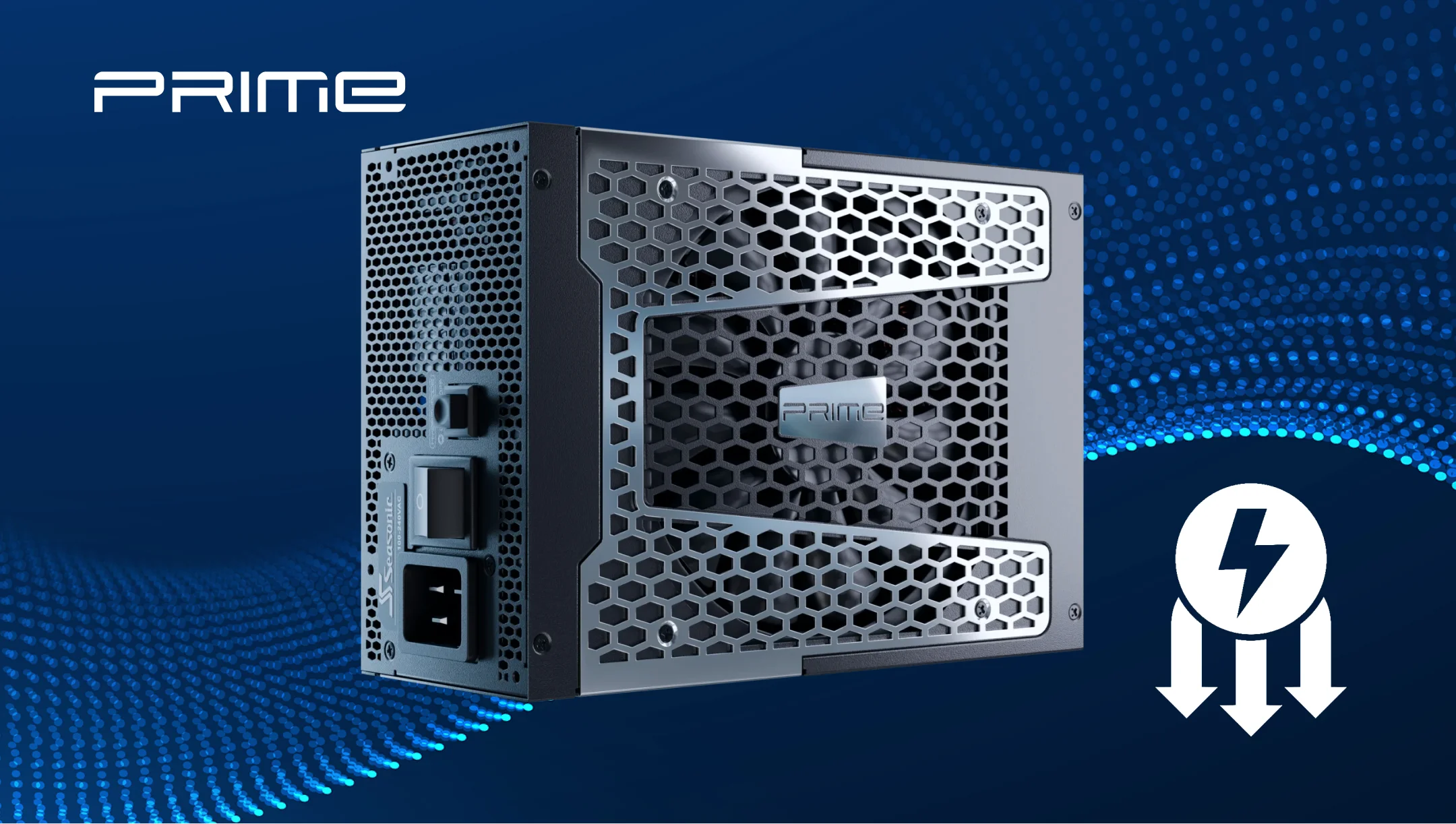
The reason for these power spikes is the GPU that consumes more power than its standard TDP during game launches, scene loads, or shader compilation. These spikes last only milliseconds or even microseconds, so most online calculators simply don’t account for them.
This is one of the reasons ATX 3.0 introduced formal power excursion requirements for modern PSUs. According to Intel’s specifications, modern PSUs must handle transient loads that can significantly exceed a GPU’s rated power.
Some users of high-end gaming PCs share their experience on Reddit, as they have seen stable benchmark results and normal average power draw, but still faced sudden reboots in specific games. More often, the solution was not only a higher wattage number, but a better-quality PSU platform designed to handle quick load changes properly. That’s why a PSU calculator might suggest 650W is enough for a system, while manufacturers recommend 750W–850W.
CPU overclocking behavior and short-term power draw
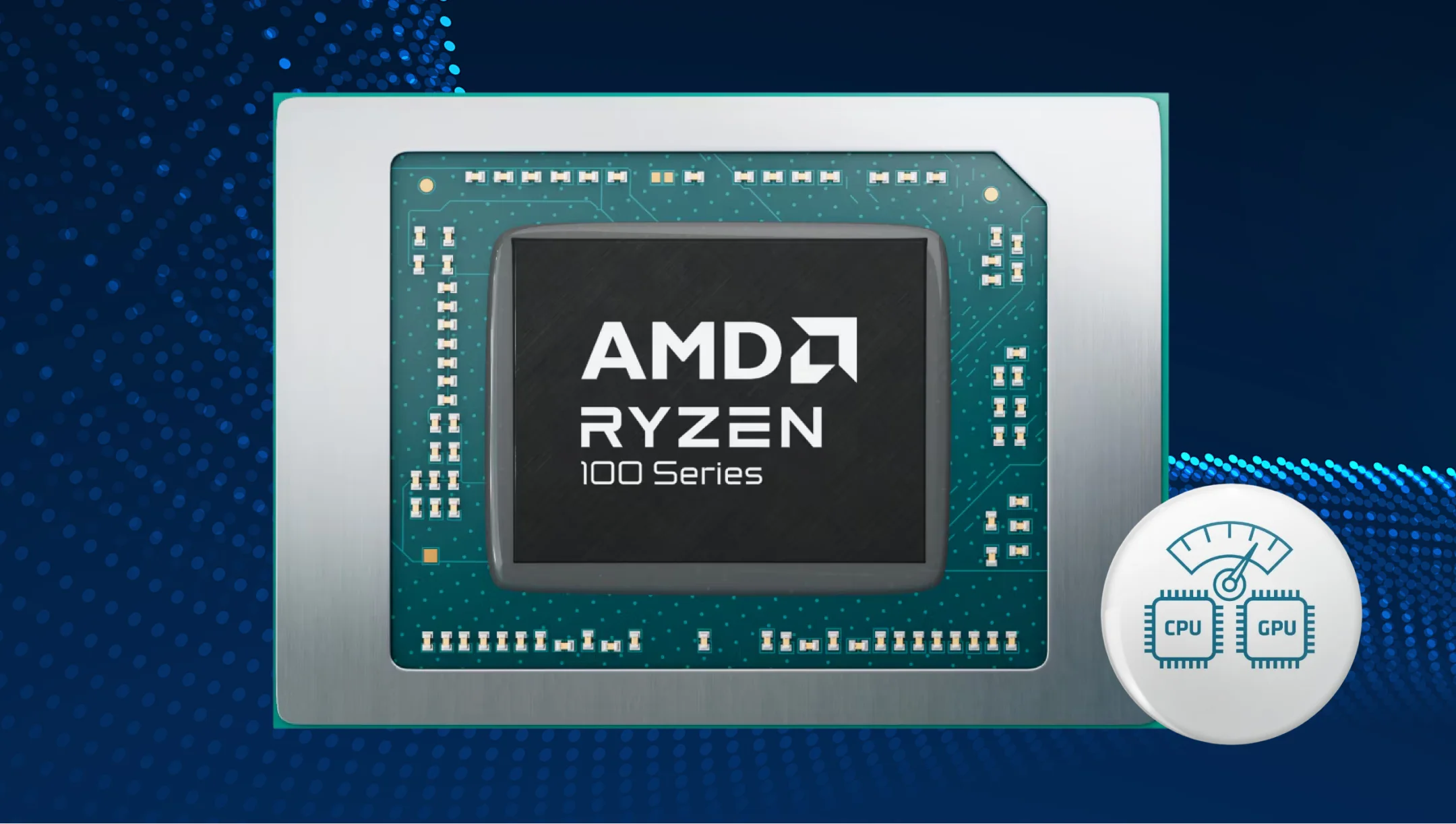
Most calculators rely on a supposedly stable CPU TDP, but in reality, CPU power draw is highly dynamic and can change dramatically within milliseconds. Modern Intel and AMD processors use automatic boost technologies (Turbo Boost, Precision Boost) that quickly adjust clock speeds and voltage based on workload. When jumping from idle to boost states, CPUs can momentarily draw significantly more power than their average levels. This becomes even more pronounced with manual overclocking or when power limits (PL1/PL2, PBO) are relaxed.
PC enthusiasts often highlight that when calculating the power supply for a PC, PSU calculators rarely account not only for overclocking, but some estimates rely on base TDP values, while real peak CPU power can depend on Intel PL1/PL2 settings, AMD PBO limits, motherboard BIOS behavior, and cooling capacity. On the other hand, this is expected behavior, since power spikes require additional headroom that standard calculators are not designed to accurately predict for each configuration. That’s why they offer maximum power consumption, based on the CPU technical specification, defined by the manufacturer.
Thus, two identical CPU setups can end up with different PSU requirements depending on BIOS settings, power limits, and how aggressively boost algorithms are allowed to operate.
Cooling loads people forget to consider in power calculations
Ignoring the cooling system’s power needs is also one of the quiet reasons why calculations go wrong. Modern cooling systems may add a noticeable additional load, which, of course, affects overall power consumption and peak-load stability.
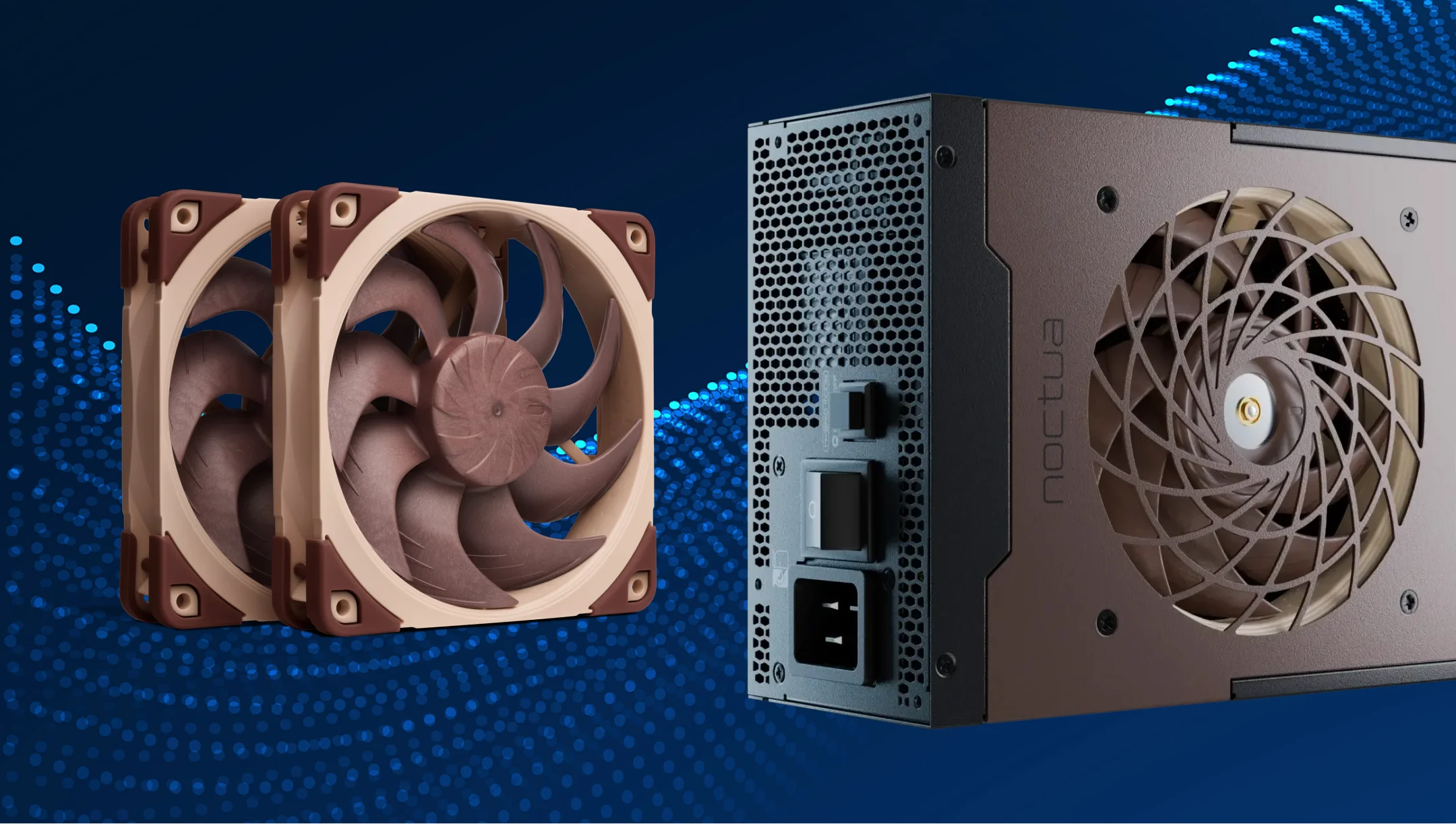
Liquid cooling (AIOs and custom loops) often gets overlooked. AIO pumps don’t use much power, but they run all the time, so they still add a constant load that most PSU calculators don’t really account for. In custom water-cooling setups, things get more complex – extra pumps, controllers, and hubs can create a noticeable load on the 12V rail.
Another factor is the fans and their number within the system setup. In modern high-airflow cases (especially those with RGB or PWM ecosystems), users may have 8–12 fans or even more. Each one draws very little power, but together they add up to tens of watts, which often gets missed in PSU calculator estimates.
That is why real-world PSU manufacturer recommendations often go with a bit of extra power headroom for not just the CPU and GPU, but also the smaller parts of the system.
RGB systems, pumps, fans, and peripheral power consumption
In today’s real-world builds, large RGB ecosystems have become pretty common among hardware enthusiasts. Users add ARGB fans, LED strips, controllers, and sync hubs to improve their builds and add some aesthetics. Each device on its own doesn’t use much power, but once you stack a bunch of them together, the total load can become noticeable. Especially when everything is running at full brightness or with complex lighting effects.
Another factor that adds to the overall power consumption is the liquid cooling pumps. AIO coolers usually have fairly stable power draw, but custom loops can include multiple pumps, extra controllers, and sensors. In setups like that, cooling becomes part of the overall power budget, not just a negligible load, and that’s something most calculators don’t really capture.
Fans are another thing to notice, especially in modern high-airflow cases. Instead of 2–3 fans, it’s now common to see 8–12 or even more, including radiator setups. Together, they can easily add up to tens of watts of constant load.
And then there are USB-connected peripherals – another low but constant load that usually gets missed in PSU calculators. High-end gaming mice, RGB keyboards, external SSDs, and even devices charging through USB ports all pull power from the system.
Display refresh rates, multi-monitor setups, and hidden power consumption
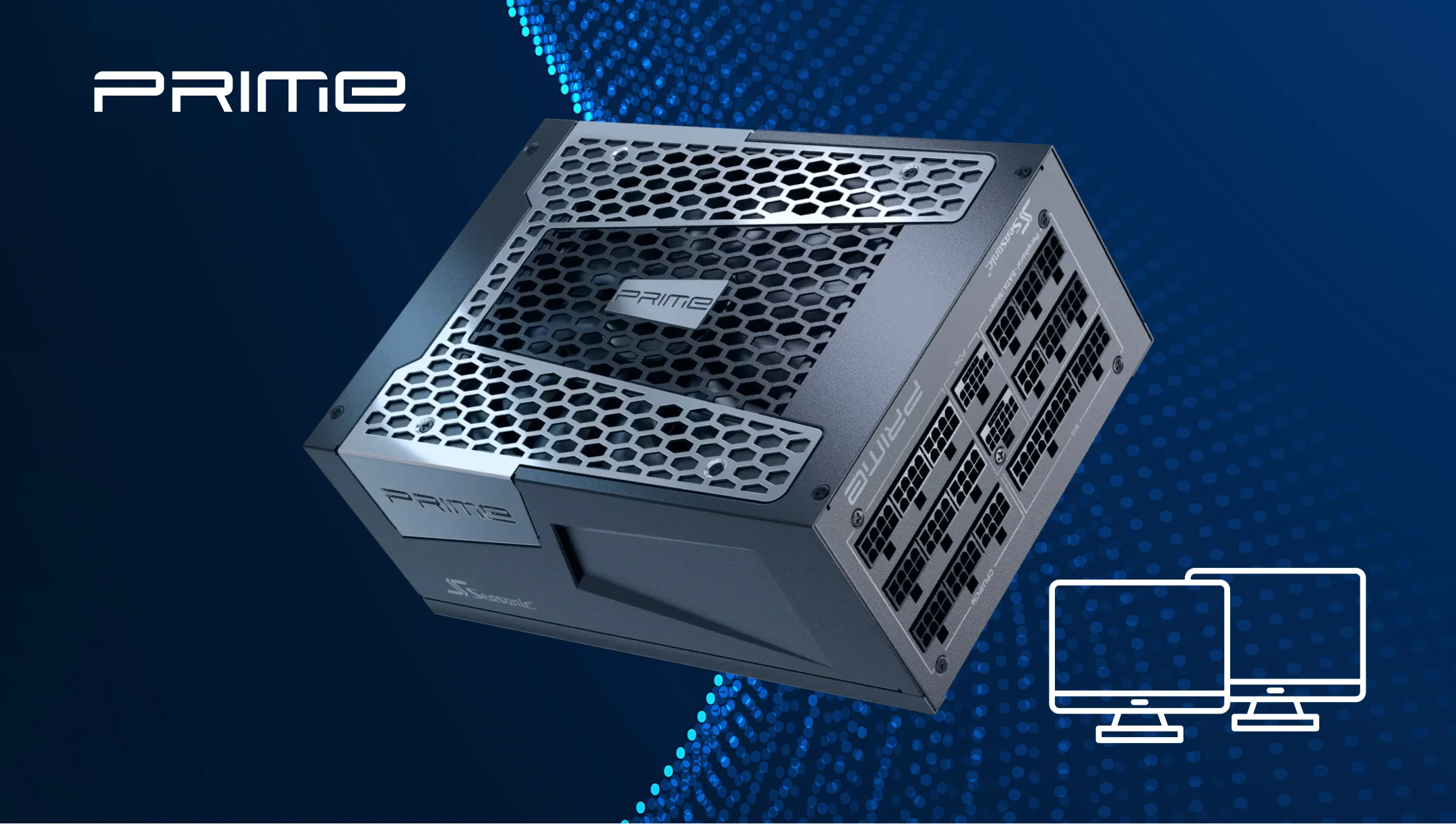
PSU calculators almost never consider the impact of displays, refresh rates, or multi-monitor setups on overall system power consumption because they focus on component load more, not monitor configurations. While monitors draw power separately from the PSU, the way they’re connected can still affect how the GPU behaves. From this point, we can confidently say that monitors also affect the system load, however small the impact may be.
High refresh rates (144Hz, 240Hz, and beyond) are also included in this process and increase a GPU’s idle power draw. To keep stable operation, the GPU may maintain higher core and memory clocks, running multiple monitors with different refresh rates connected. Although the monitor has its own power source, the way it’s used can affect the GPU’s power consumption.
PCs running multi-monitor setups can consume more power at idle than the same system with a single monitor. For example, a 4K monitor paired with a 1080p display, or a 240Hz panel alongside a 60Hz one. In these situations, the GPU often can’t fully clock down when idle.
HDR and high-resolution displays can have a similar effect. In some 4K/144Hz setups, the GPU may keep VRAM frequencies elevated even when you’re just sitting on the desktop. That can eventually increase the system’s baseline power consumption significantly.
How undersized power supplies cause crashes, instability, and loss of efficiency
The most common consequences of an underpowered PSU are:
- Unexpected reboots when launching games, rendering projects, or running stress tests. Under such conditions, the CPU and GPU hit peak loads at once.
- Random shutdowns if the PSU can’t handle the brief power spikes caused by GPUs.
- Stability issues in everyday use, even when the CPU and GPU pass synthetic stress tests without problems.
- Reduced power delivery stability when the PSU operates close to its limits, which can affect sensitive components.
- Higher fan noise as the PSU has to work harder and cool itself under heavy load.
- Lower efficiency and higher temperatures, since most PSUs perform best at around 40–60% load rather than near their maximum capacity.
- Limited upgrade potential, as adding a more powerful GPU or extra hardware can quickly exceed the PSU’s available headroom.
Best practices for accurate PSU power calculations in 2026
Modern PCs have more complex load scenarios, so it’s important to consider as many factors as possible:
- Take into account not only the average GPU power consumption, but also its sudden spikes in power draw.
- Include all storage drives, fans, RGB controllers, AIO pumps, and USB devices in your calculation. You might think their impact on the overall power budget is negligible, but it can actually add up to a meaningful amount.
- Verify the actual power consumption of components through independent reviews.
- Add a power reserve for future upgrades or GPU replacement within the next few years.
- Account for potential CPU or GPU overclocking, as well as aggressive settings for Turbo Boost, Precision Boost Overdrive, or the motherboard’s automatic overclocking.
- For modern gaming and workstations, choose PSUs compatible with the ATX 3.1 standard, as they support high-end builds in handling transient peaks.
- Don’t judge a PSU solely by its wattage. Component quality, voltage stability, and the effectiveness of protection circuits often affect system stability more.
- As a general rule, keeping the system’s typical load within the 40–70% range of the power supply’s capacity can help with efficiency, thermals, and noise. However, PSU quality and efficiency certification matter more than targeting an exact percentage.
Conclusion
To calculate how much power your PSU must deliver to the system you have or plan to build, it’s not enough to just know the list of core components. Calculation itself transforms into a deeper process when you rely more on scenarios your PC will deal with and the components’ behaviour under various conditions, in most cases – under heavy loads.
If you’re not sure how to calculate a power supply’s power capacity – use an online wattage calculator to get at least a baseline to stand on. Also, consider the manufacturer’s recommended wattage as a reference point for specific GPU and CPU models.